 TrueRoute
Positioning Modes Explained
TrueRoute operates in three positioning modes. The app switches between them automatically based on GPS reliability and sensor availability. Understanding these modes helps you know what to expect during your drive.
What you need
- TrueRoute installed and running on your Android device.
- For Enhanced and Dead Reckoning modes: an ELM327 Bluetooth OBD2 adapter connected to your vehicle. See How to Connect an OBD2 Adapter.
GPS Mode
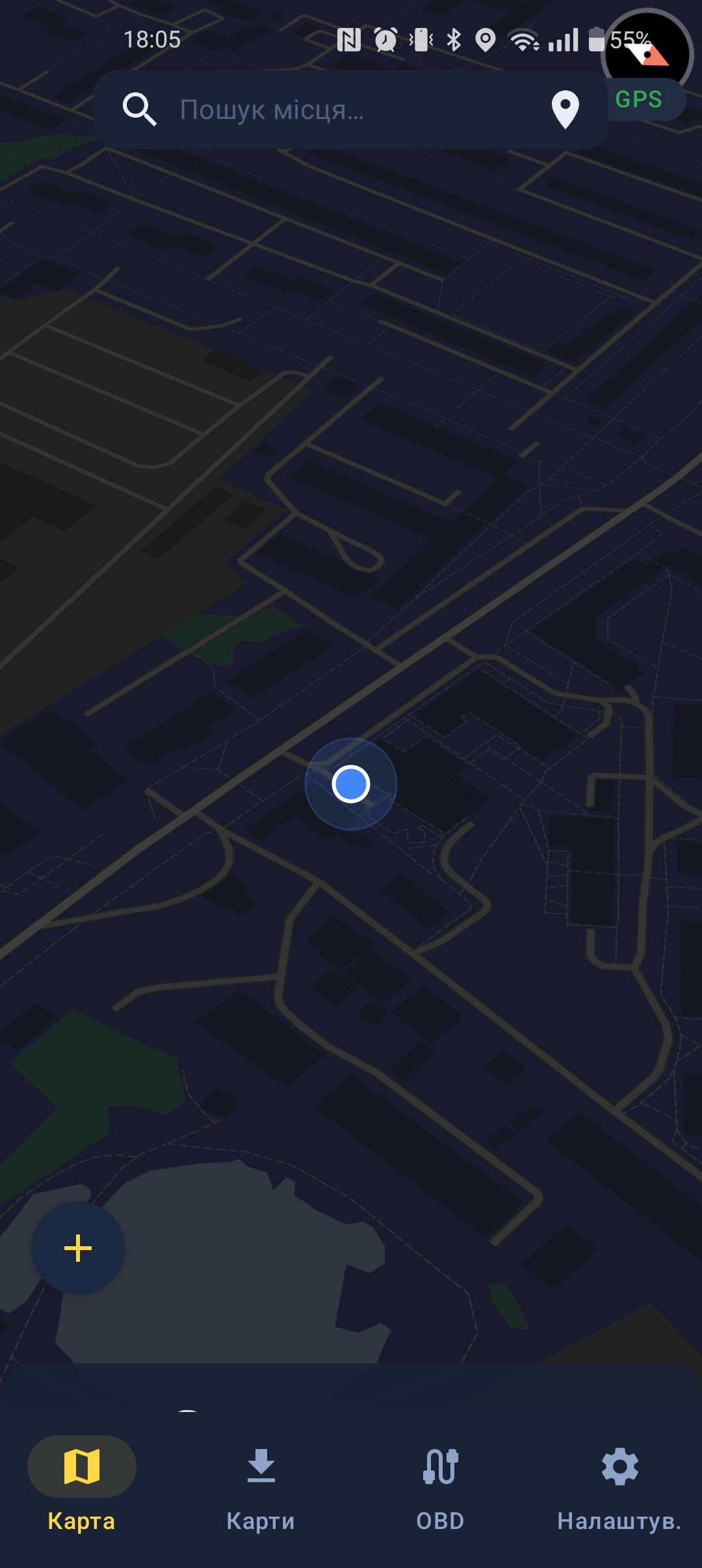
GPS Mode uses your phone's GPS receiver as the sole position source. This mode is active when no OBD2 adapter is connected, or when GPS signal is fully trusted with no spoof detection active.
Map indicator: Standard blue position marker.
Accuracy: Depends on GPS signal quality, typically ≤5 meters in open sky conditions.
Enhanced Mode
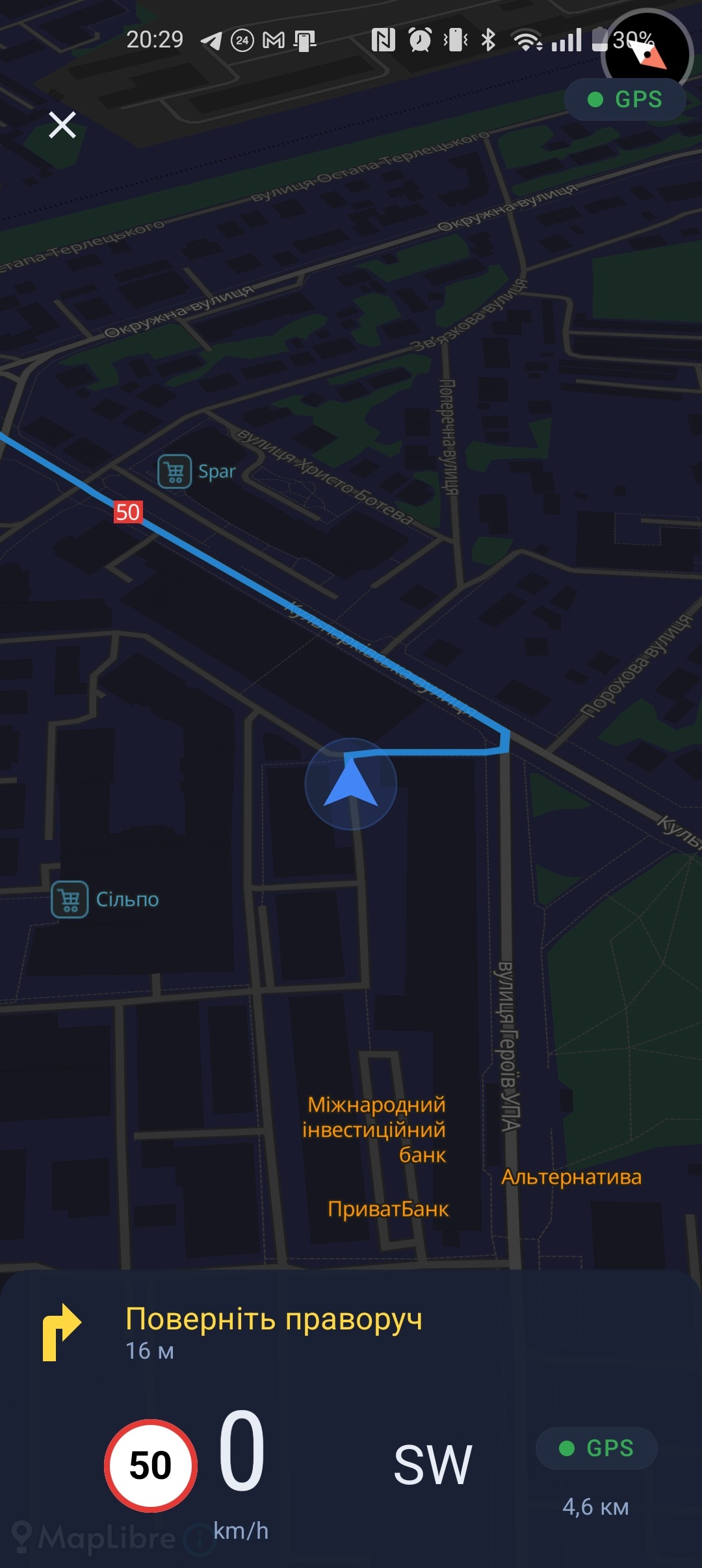
Enhanced Mode fuses GPS with OBD2 vehicle speed data using an Extended Kalman Filter (EKF). This provides the best accuracy and enables GPS disruption detection. Enhanced Mode activates automatically when an OBD2 adapter is connected and GPS signal is present.
Map indicator: Blue position marker with an enhanced accuracy ring.
Accuracy: ≤5 meters fused position under normal conditions.
Dead Reckoning Mode
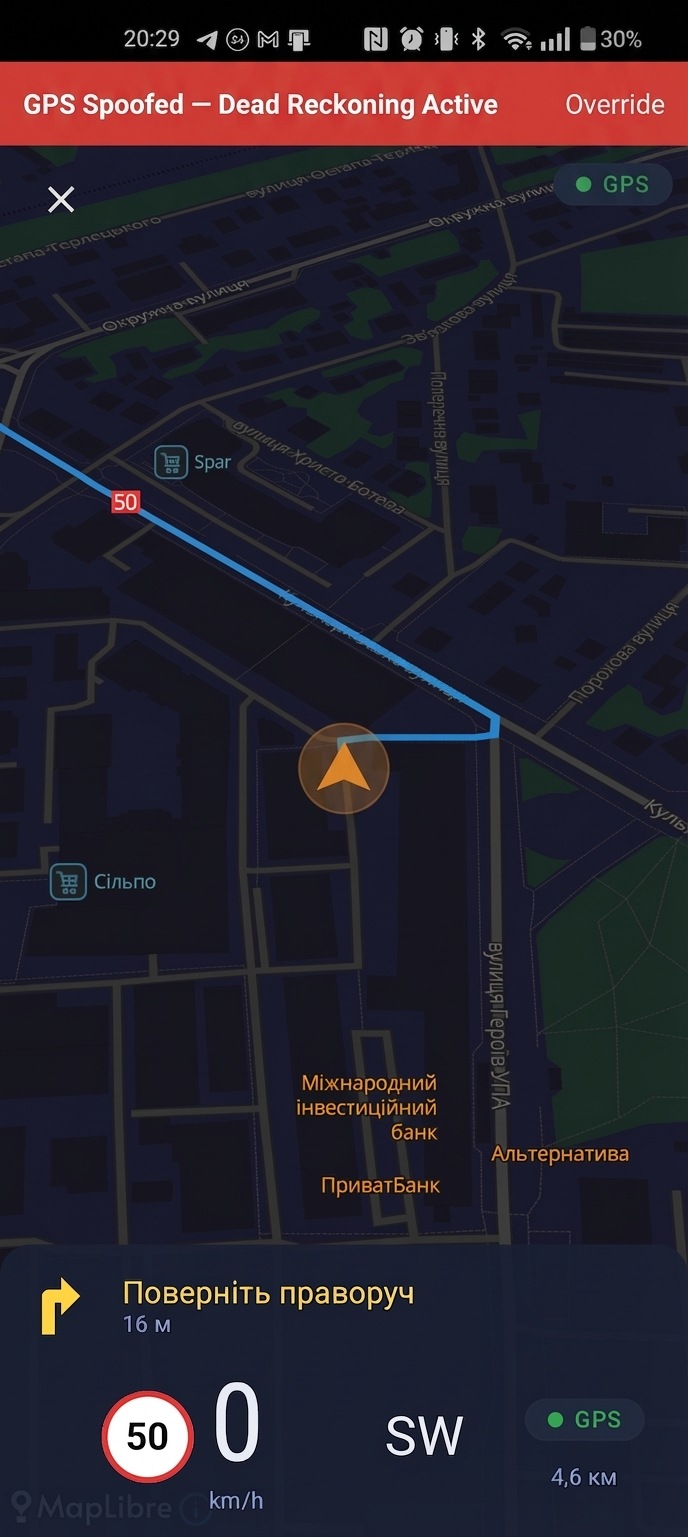
Dead Reckoning Mode activates when GPS is detected as unreliable. The app propagates your position using OBD2 speed and phone gyroscope heading instead of GPS. This is the mode that keeps you navigating when GPS is jammed or spoofed.
Map indicator: Orange position marker. An accuracy radius circle appears after 5 minutes in Dead Reckoning mode to indicate growing uncertainty.
Accuracy: Less than 5% drift per 10 km with OBD2 connected. Less than 20% drift per 10 km without OBD2 (gyroscope and accelerometer only).
How mode switching works
TrueRoute uses a spoof confidence score from 0.0 to 1.0 to decide when to switch modes. Four detectors contribute to this score: speed consistency, position jump, heading consistency, and GNSS anomaly.
- Score reaches 0.6: A GPS disruption warning appears on screen. You remain in your current mode.
- Score reaches 0.8: The app switches to Dead Reckoning Mode automatically.
- Score drops below 0.3 for 30 continuous seconds: The app returns to GPS-based positioning (GPS Mode or Enhanced Mode depending on OBD2 connection).
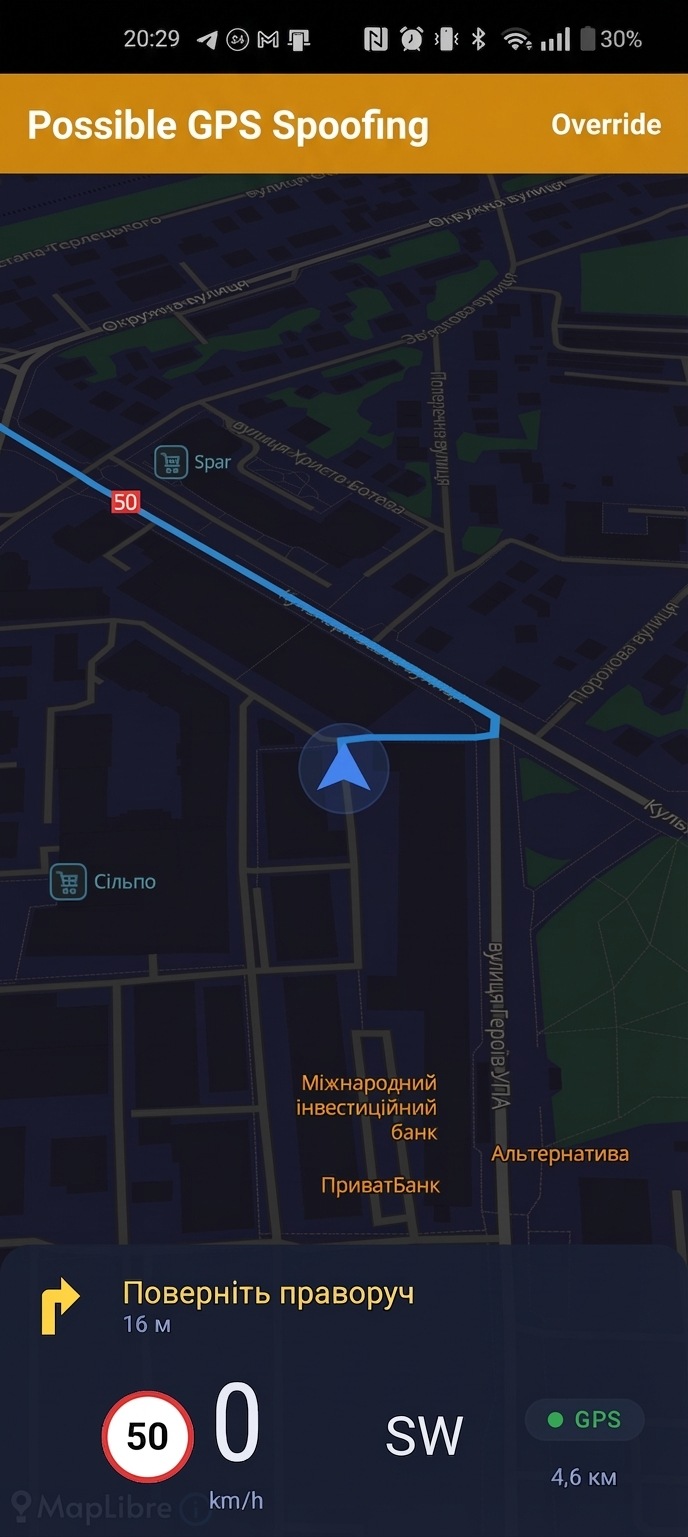
Manual override
You can force a specific positioning mode from the app settings.
-
Open TrueRoute and navigate to Settings.
-
Tap Positioning Mode.
-
Select Force GPS Mode or Force Dead Reckoning Mode to override automatic switching.
Use manual override when you know your GPS is trustworthy despite a high confidence score, or when you want to test Dead Reckoning mode before relying on it.