 TrueRoute
How to Import a GPX Route
TrueRoute uses GPX file import for route following. Plan your route in a separate app like Organic Maps, export it as a GPX file, and open it in TrueRoute. The route appears as a polyline on the map with audio cues at turns.
What you need
- A GPX file containing your planned route. Organic Maps (free, available on Android) is recommended for route planning.
- The TrueRoute app with offline maps downloaded for your region.
Steps
- Open Organic Maps and plan your route to the destination.
Organic Maps with a planned route displayed
- Tap Share and select Export as GPX to save the route file.
Organic Maps share menu with Export as GPX option
- In the Android share sheet, tap Open with TrueRoute. The app opens and imports the route automatically.
Android share sheet showing TrueRoute option
- The imported route appears as a polyline on the TrueRoute map. Review the route to confirm it matches your plan.
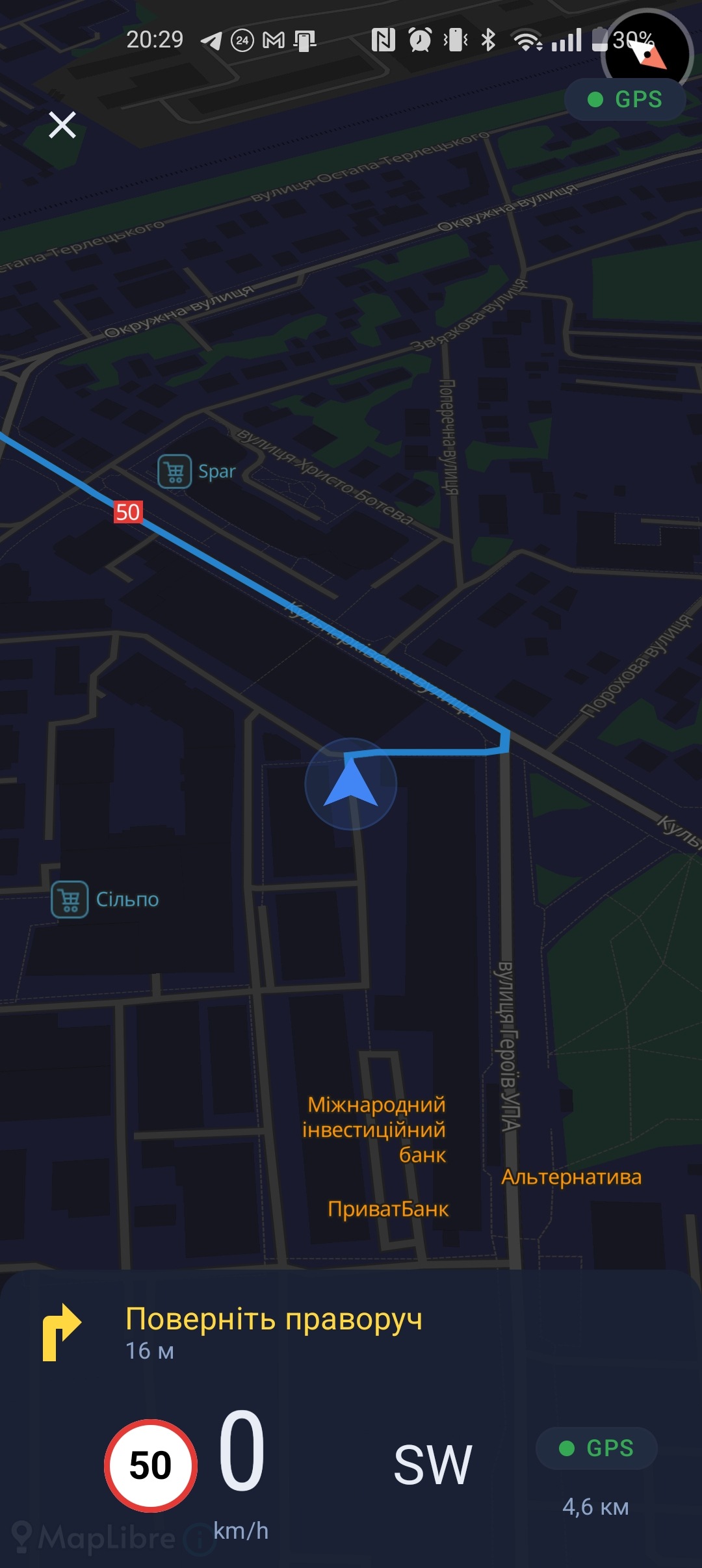
- Tap Start Navigation to begin following the route.
Route following behavior
TrueRoute provides audio cues at turns along the imported route. If you deviate more than 200 meters from the route, a warning appears on screen. The current version does not auto-reroute — return to the route manually or import a new GPX file.
If GPS is disrupted during your drive, TrueRoute switches to Dead Reckoning mode and continues following the route using your vehicle's speed sensor and phone gyroscope.
Something went wrong?
- GPX file does not open in TrueRoute. Confirm the file is a valid
.gpxformat. Try using the file picker instead: open TrueRoute, tap Import Route, and select the GPX file from your device storage. - Route does not appear on the map. Ensure you have offline maps downloaded for the region the route covers. See How to Download Offline Maps.